

Cost Control
Every use of an agent consumes tokens and therefore generates costs. The token and cost overview shows which costs were incurred in which period, which agent caused them, and how consumption develops day by day. Via a monthly cost limit, it can be defined for each agent how much it may cost at most.
License
The token and cost overview is included from the Builder license onward and is visible only to global admins and group admins. The behavior when a cost limit is reached affects all users (see Behavior When the Cost Limit Is Reached).
When Do I Need Cost Control?
- Understanding which costs the agents have incurred in the current month
- Identifying which agents have the highest consumption
- Setting cost limits so that a heavily used agent cannot cause unlimited costs
- Comparing consumption across periods, e.g. the current month against the previous month
- Understanding why an agent can no longer be selected in the chat
How Do Costs Arise?
Agents process text in tokens. A token is a building block into which a language model splits text – roughly a word or part of a word. The number of processed tokens determines the costs (see Introduction to incoreon AI).
The token and cost overview distinguishes two types:
- Interaction tokens: all tokens from the agent's work in the conversation – questions, answers, reasoning steps, and used capabilities
- Knowledge tokens: all tokens that arise when the agent searches its stored knowledge
incoreon converts the used tokens into euros. The token and cost overview shows the resulting amount in euros.
Warning
Automations also consume tokens: Every automatic run of an agent counts toward its costs (see Automation and Workflows).
Opening the Token and Cost Overview
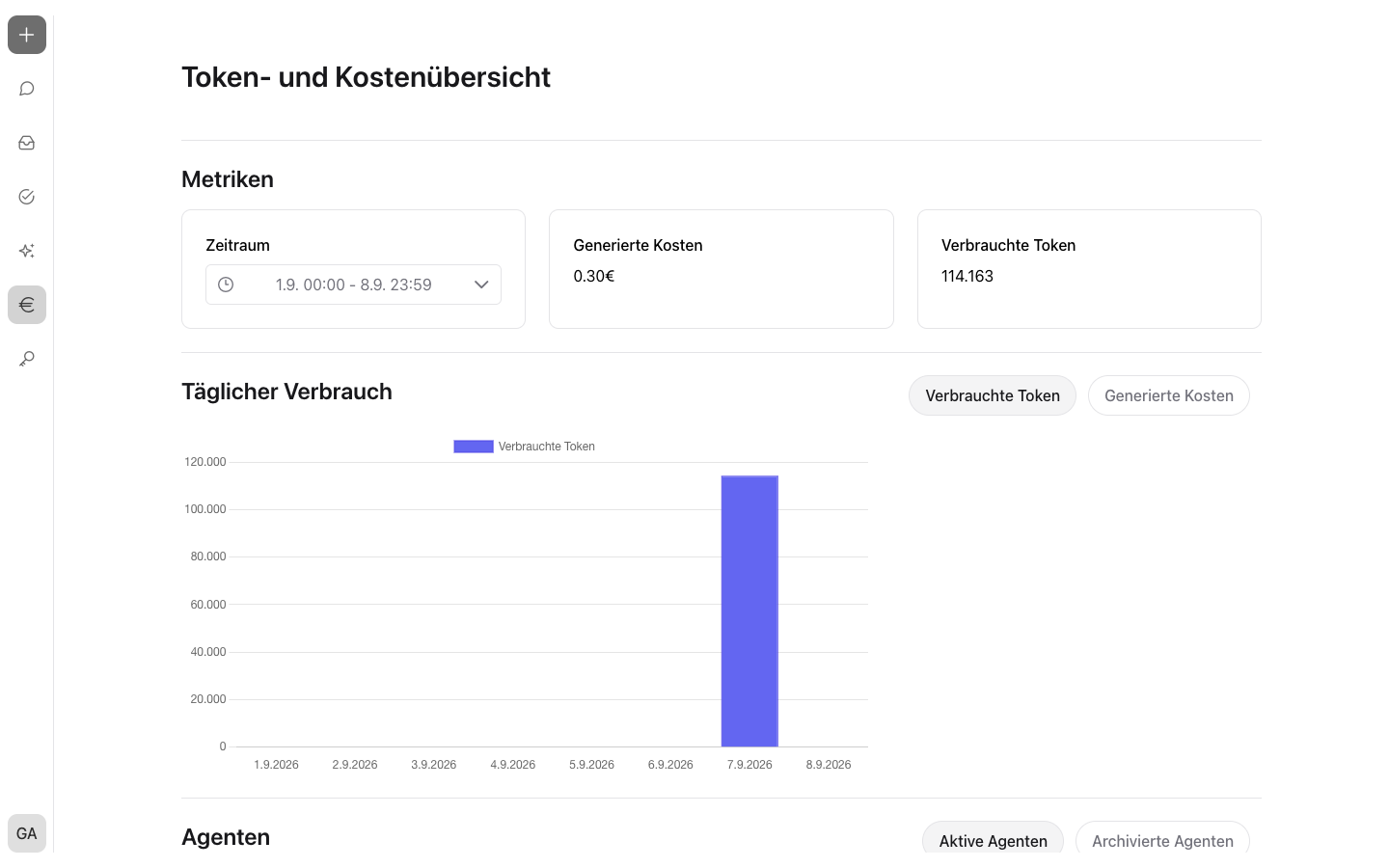
The token and cost overview is opened via the  in the navigation. By default, the overview shows the period from the first day of the current month until today.
Setting the Period
Metrics, diagram, and table show the values of the selected period. The instructions are in the guide chapter under Guide: Setting the Period in the Token and Cost Overview.
Reading Costs and Tokens
The “Metrics” area shows three displays: “Time range”, “Generated costs”, and “Used tokens”.
- “Generated costs” shows the sum of all costs in the selected period in euros.
- “Used tokens” shows the total number of used tokens. The breakdown into interaction tokens and knowledge tokens appears in the tooltip.
Viewing Daily Consumption
The “Daily consumption” diagram shows one bar for each day of the selected period. Via the toggle next to the “Daily consumption” heading, the view switches between “Used tokens” and “Generated costs”. For each bar, date and value appear in the tooltip.
Monitoring Costs per Agent
The “Agents” table lists each agent with name, “Generated costs”, “Used tokens”, and “Monthly cost limit”. The breakdown into interaction tokens and knowledge tokens appears in the tooltip of the token count.
- Via the toggle “Active agents” / “Archived agents”, the view switches between active and archived agents. Archived agents remain visible with their consumption.
- The columns can be sorted by clicking the column header. By default, the table is sorted by “Generated costs” in descending order.
- The “Monthly cost limit” column shows the cost limit in euros, or “Unlimited” if no cost limit is set.
For changing a cost limit, there is a separate guide (see Guide: Changing an Agent's Cost Limit).
Behavior When the Cost Limit Is Reached
Note
Affects all users who work with agents.
When an agent reaches its monthly cost limit, incoreon stops the agent's work:
- The agent appears greyed out in the agent selection in the chat. The reason appears in the tooltip (see Chat).
- If the agent is selected, the chat input area is locked. The notice “The agent you have selected has reached their monthly cost limit. Please select another agent or chat without an agent.” appears.
- Uploading files to the agent's knowledge is also blocked.
- Automatic runs of the agent no longer take place.
Remedies:
- Select a different agent or chat without an agent – internet search can be activated via the @ icon (see Chat).
- Increase the cost limit (see Guide: Changing an Agent's Cost Limit).
- Wait for the month to change: The cost limit applies to the current calendar month.
Cost Control FAQs
Why does an agent show 0 tokens?
The agent was not used in the selected period.