

Roles and Permissions
The “Permissions” area combines user management, group management, and the assignment of rights in incoreon AI. Global administrators and group admins determine here who leads a group, who may edit which agents, and who may administer the platform.
License
The “Permissions” area is included from the Builder license onward and is visible only to global administrators and group admins. It is available on the computer only.
When Do I Need the Permissions Management?
- Mapping teams or departments as user groups and determining per group who may edit the associated agents
- Adding colleagues to a group as members or group admins
- Making users global administrators or revoking administrator rights
- Determining whether a group's agents may connect custom capabilities via their own MCP servers
Understanding roles and rights
incoreon AI distinguishes three roles: global administrators, group admins, and users. The role determines which areas a person can see and edit. Group admin is not a global role: it applies per group. A person can be a group admin in one group and a member in another.
Global administrator
Global administrators manage a company's entire platform. The “Edit user” window describes the role with these rights:
- Create and manage agents without restrictions
- Extend and manage licenses
- Create and delete users
- Manage groups and appoint group administrators
- Unrestricted access to chat features
Group admin
Group admins manage the groups in which they hold the “Group admin” role. Group admins can:
- rename and delete their own group
- add and remove members of their own group and set the members' roles
- edit agents whose editing rights lie with their own group (see Creating and Configuring Agents)
User
Users can access the agents assigned to them. The “Edit user” window describes the role with these rights:
- Access to chats assigned to agents
- View of the agents assigned to him
Licenses Planned
Coming soon
Managing licenses is a planned feature and not yet part of incoreon.
The license determines which functions a user can use. incoreon AI has the license tiers “Lite”, “Pro”, and “Builder”. For permissions management: the “Permissions” area is included from the Builder license onward. The “Group admin” role, too, is granted only to people with a Builder license.
Opening Permissions
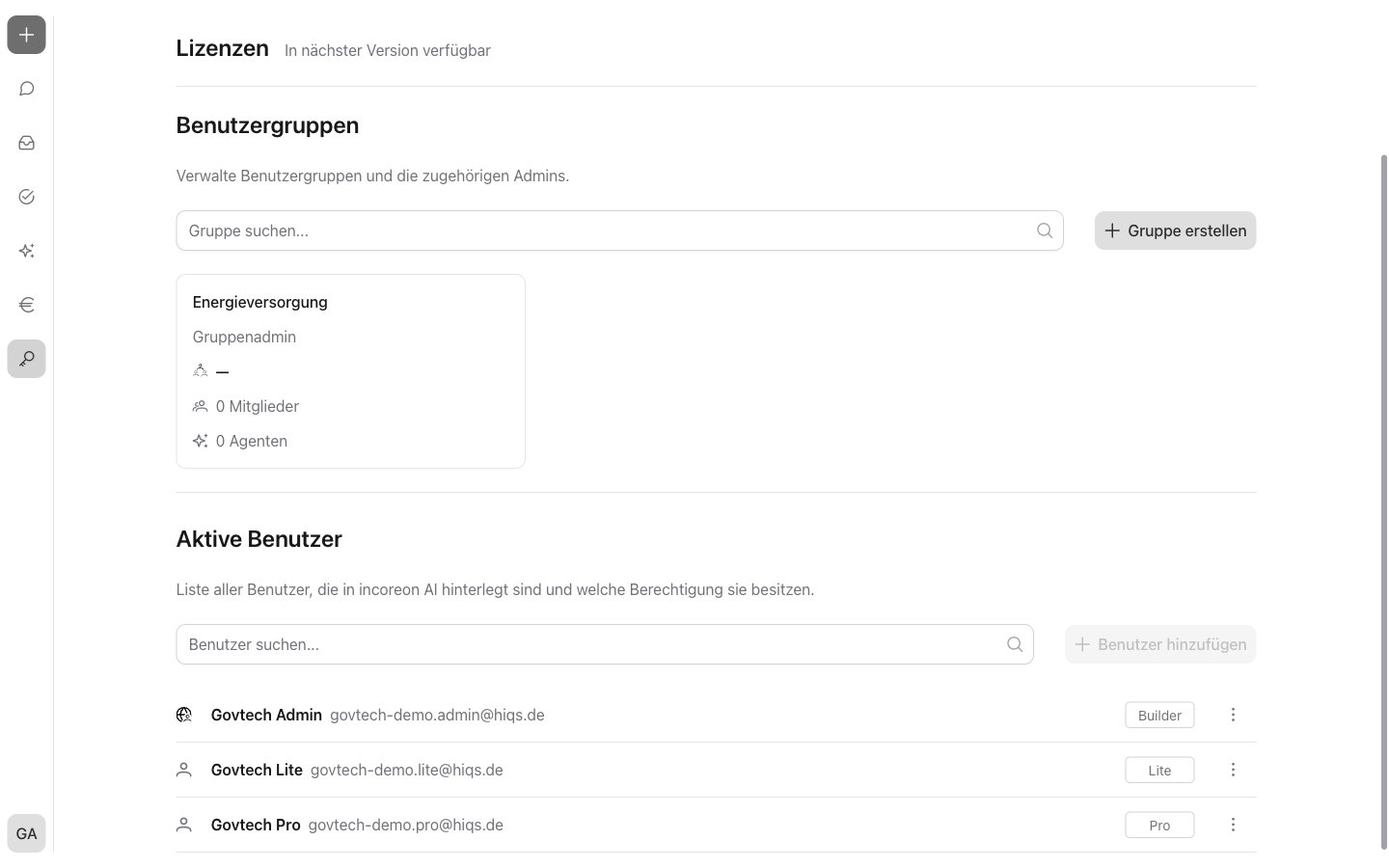
The  is clicked in the navigation. The “Permissions” area opens with the sections “Licenses”, “User groups”, and – for global administrators only – “Active users”. In the group overview, group admins see only their own groups; global administrators see all groups.
The “Licenses” section currently shows the note “Available in the next version”. Managing licenses in this area is in preparation.
Managing user groups
License
Included from the Builder license onward; for global administrators and group admins.
Group overview
The “User groups” section lists all groups as cards. Each card shows the group name, the first group admin – additional group admins appear as “+number” –, the number of members, and the number of the group's agents. The list can be filtered by group name via the “Search group…” field. A click on a card opens the group page.
Creating a group
License
Included from the Builder license onward; for global administrators only.
Groups are created by global administrators. The instructions are in the Guide: Creating a Group guide.
Renaming and deleting a group
On the group page, the name can be changed under “Group name”. All changes on the group page – name, members, or roles – are applied only with “Save”. The “Save” button becomes active only after a change has been made. When leaving the group page with unsaved changes, incoreon asks whether the changes should be discarded.
A group name that is already taken is not applied. incoreon reports that a group with this name already exists.
Via  “Delete group”, the group can be removed. incoreon opens the prompt “Are you sure you want to delete the group ‘{name}’?”. A click on “Delete” removes the group.
Allowing your own MCP servers
The “Allow your own MCP servers” option on the group page determines whether the group's agents may connect custom capabilities – capabilities provided through a dedicated MCP server (see Agent Components in Detail). Only global administrators can change the option; for group admins it is grayed out.
Warning
If the permission is revoked, incoreon deletes all of these agents' MCP servers.
Managing members and group admins
License
Included from the Builder license onward; for global administrators and group admins of the group.
The “Members” section on the group page lists all members of the group. Group admins appear at the top of the list, followed by the remaining members in alphabetical order. The  next to the name indicates the “Group admin” role. The list can be filtered via the “Search member…” field.
Adding a member
Via  “Add members”, the “Add members” window opens. Users can be found there via the “Search user…” field – the search covers names and email addresses – and added to the list one by one. For each selected user, the role “User” or “Group admin” can be set under “Select role”. The “Group admin” role is offered only for users with a Builder license. “Add” transfers the selected users to the member list; the change is saved only with “Save” on the group page.
The instructions are in the Guide: Adding Members to a Group guide.
Granting or revoking group admin
The role can be switched via  next to a member: “Make admin” or “Make member”. Only a member with a Builder license can receive the “Group admin” role; without a Builder license, the entry is missing from the menu. The change is applied with “Save”.
The instructions are in the Guide: Changing a Group Member's Role guide.
Removing a member from the group
“Remove from group” is selected via next to a member. The member disappears from the list as soon as “Save” is selected on the group page.
Managing users and administrator rights
License
Included from the Builder license onward; for global administrators only.
The “Active users” section lists all users registered in incoreon AI and shows their permissions. Global administrators appear at the top of the list, followed by the remaining users in alphabetical order by email address. Next to name and email address, the list shows:
- the role:
 for “Global administrator” or
  for “User”
 - the label “Group admin” if the person leads at least one group
- the license: “Lite”, “Pro”, “Builder”, or “No license”
The list can be filtered by email address via the “Search user…” field. The “Add user” button is currently disabled; creating new users in the “Permissions” area is in preparation.
Changing a user's role
“Edit user” is selected via next to a user. In the “Edit user” window, a choice between “Global administrator” and “User” can be made under “User role”. Next to the selected role, the window shows the associated rights as a list. “Save” applies the new role.
The instructions are in the Guide: Changing a User's Role guide.
FAQs about permissions
What happens when “Allow your own MCP servers” is revoked?
incoreon deletes all of these agents' MCP servers. The deletion cannot be undone.
Why can “Save” on the group page not be clicked?
The button becomes active only after a change has been made on the group page. In addition, the name under “Group name” must not be empty.
What does “No license” mean in the user list?
No active license is stored for the user. The user cannot use incoreon AI until a license is assigned.